

Creating and editing orders
Capture a new order, set date and technician, attach documents and notes.
Orders are the core of AuftragsDesk. The order list shows every order with status, date and assignee and can be filtered by status, client, period and employee.
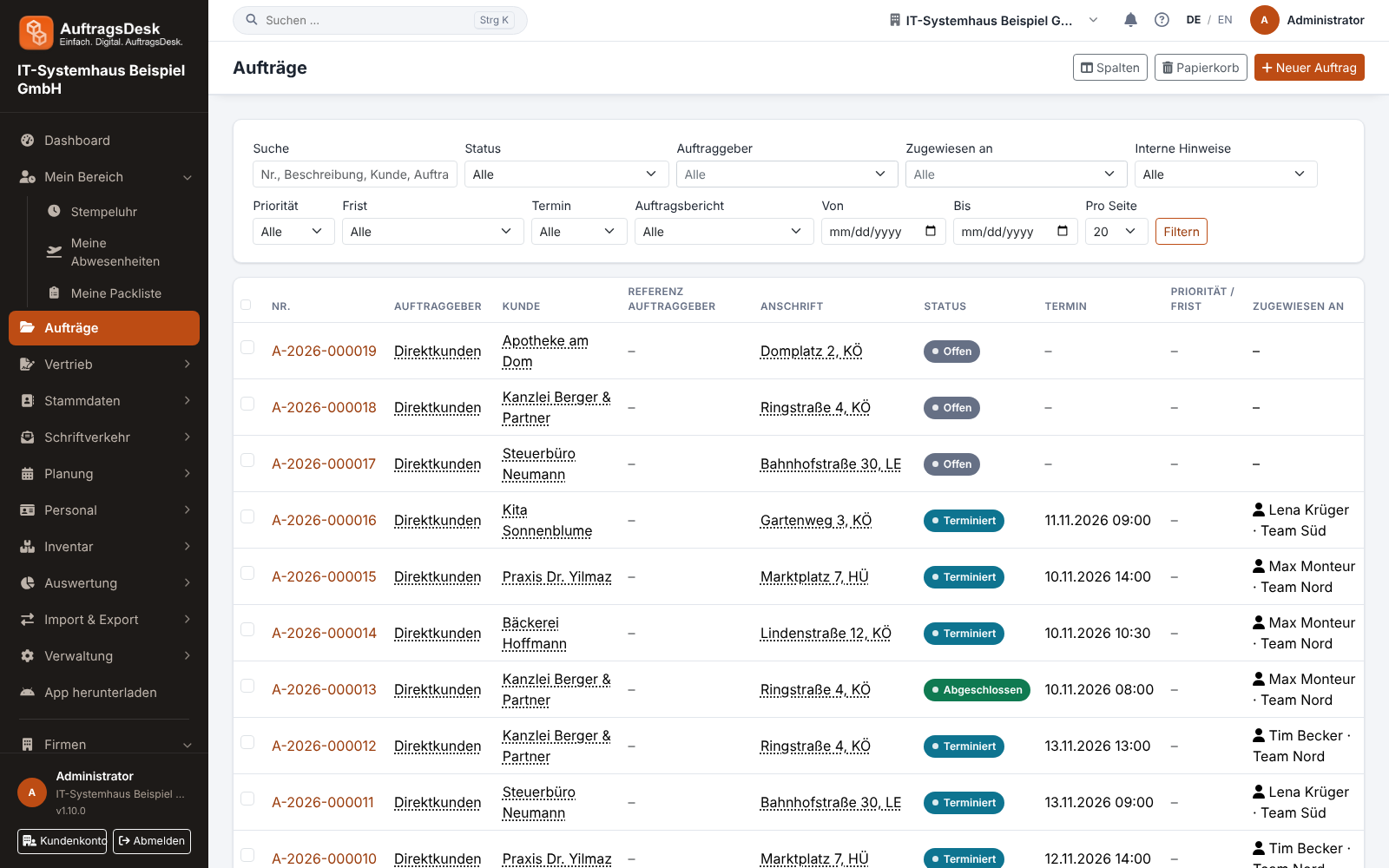
Creating a new order
- Open Orders → New order (or press n).
- Choose the customer or create one on the spot. If the order comes from a client (e.g. a property manager), select it too; its custom fields such as order number or cost centre then appear in the form.
- Enter title and description: what needs to be done, what does the technician need to know?
- Optionally set a date and the assignment: one or more people, plus a whole team if you like. Each choice appears as a chip in the field; the ✕ removes it again. With a date the order starts as "Scheduled", otherwise as "Open".
- Save. Everyone assigned sees the order in the app immediately, may work on it and receives a notification.
New client straight from the order? The + next to Client opens the same form as under Master data → Clients: name, e-mail, phone, address, country, the choice between fixed ticket/order number fields and custom fields, and notes. Below you add one or, with Add another contact person, several contact persons with role, phone and e-mail. The first one becomes the main contact and is selected in the order right away; the others can be chosen in the Contact person field. Create & apply takes you back to the order with client and customer ("client itself") already filled in. A new customer is added the same way via the + next to Customer / site, with the same fields as in the customer list.
Created twice? As soon as you choose the customer, the window shows a yellow note if there are open orders from the last 30 days for this customer or the same address (street and postcode). The order numbers open in a new tab. You can still create the order.
Several days or appointments? The appointment in the form is the first visit. Add further days afterwards in the order view under Visits, explained step by step in Several visits and multi-day orders.
You don't have to create recurring work every time: a maintenance contract creates the orders automatically. PDF purchase orders are handled by the order import.
Editing an order
On the order page, Edit changes date, assignment, description and custom fields. Under Functions you find:
- Documents: upload plans, photos, purchase orders; "Share" makes a document visible to the customer in the portal.
- Materials: book materials used (with stock location and prices).
- Inspection reports, site measurement and job costing.
- Notes: internal remarks that never appear in the report.
- History: every status change with time and person.
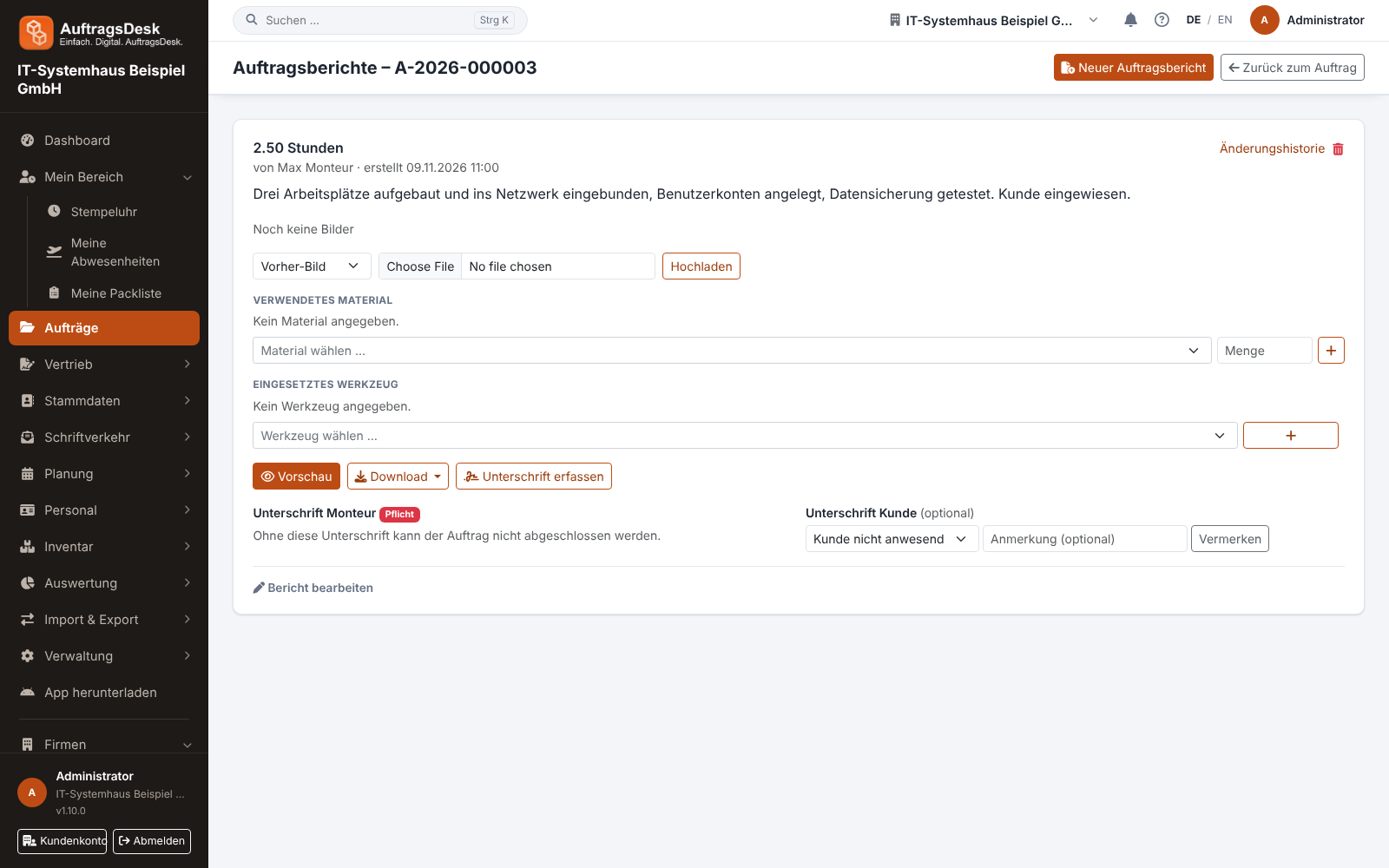
Internal notes
Below the status history, Write a note adds an internal message to the order, for example about billing or order review. In the To field you can combine any number of roles (e.g. back office, accounting), teams and individual people; each choice appears as a chip and can be removed with its ✕. Everyone selected gets a notification right away, anyone included more than once only one. Without a selection the note is just a note. In the order list, the filter Open notes for me shows everything addressed to you directly, to one of your roles or to one of your teams. Customers never see internal notes.
Who sees which order?
People with the permission "View all orders" see every order of the company. Everyone else only sees their own orders and those of their team.