

My account, sign-in and security
Password, two-factor authentication with authenticator app or passkey, recovery codes, notifications and appearance.
Under My account (top right in the profile menu) you manage your personal access. The page has five tabs.
| Tab | Content |
|---|---|
| Personal data | name, e-mail, phone |
| Security | password, username, two-factor, passkeys, recovery codes |
| Notifications | which push notifications you receive |
| Appearance | light, dark or automatic |
| API access | personal access, e.g. for a tablet |
Setting up two-factor authentication
A second factor keeps your account safe even if someone knows your password.
- Open My account → Security.
- Choose Authenticator app and scan the QR code with an app such as Google Authenticator, Microsoft Authenticator or 2FAS. Alternatively create a passkey (fingerprint, face recognition or security key).
- Confirm with your current password and the first code.
- Store the recovery codes in a safe place. They get you in if you lose your phone.
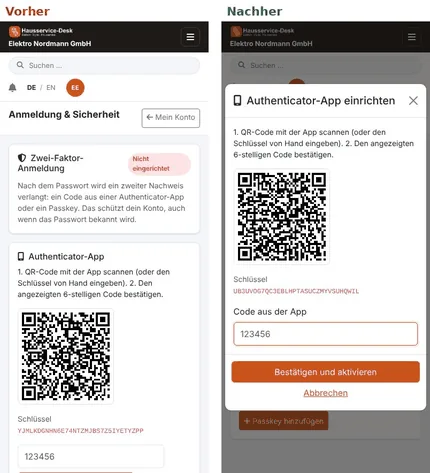
As the account holder you can make two-factor authentication mandatory for all users of your company. Anyone without a second factor is then taken straight to the setup when signing in.
Choosing a new password
A new password needs at least 12 characters. If it is known from data breaches, AuftragsDesk rejects it, because attackers try such passwords first. The check against Have I Been Pwned only sends the first 5 characters of a checksum, never the password itself. A long phrase of several words or a password from a password manager is safest.
Forgotten password
On the sign-in page, Forgot password sends a link by e-mail. For security, passkeys and personal API access are revoked. After too many failed attempts, sign-in is temporarily blocked.
Stay signed in
With Stay signed in you do not have to sign in every time on this device, also when you sign in with a passkey: tick the box before tapping Sign in with a passkey. Without it, you are signed out after half an hour without activity or when the phone closes the browser. Changing your password ends all other sessions.
If your sign-in expired while a page was open, nothing is saved when you submit a form. You return to the same page, without Stay signed in after signing in again. Your entries are filled in again there (selected files need to be chosen again); check them and submit the form once more.