

Inspection reports and checklists
Build your own templates, fill them in on the job and include them in the report.
Inspection reports let you record recurring checks consistently, for example smoke detector inspections, heating maintenance or electrical safety checks.
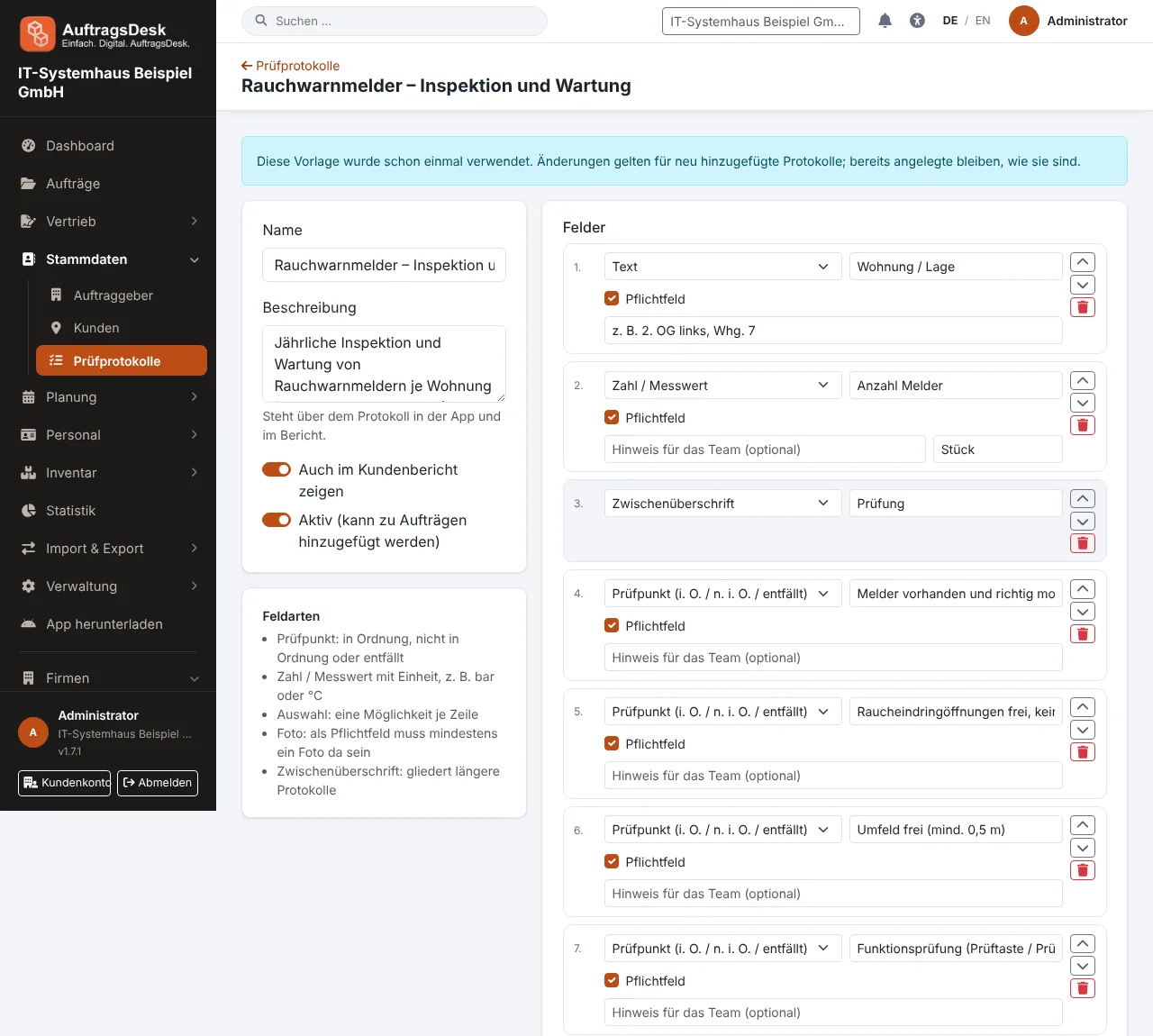
Creating a template
Under Master data → Inspection reports you build templates from these field types:
- Check item (OK / not OK / not applicable)
- Yes/no, text, number or measured value with unit, choice, date, photo
- Heading to structure the form
Every field can be mandatory and carry a hint for the team. Six sample templates (smoke detectors, heating maintenance, electrical check, handover, emergency door opening with proof of entitlement, cylinder and lock replacement) are created with one click. If you created the samples earlier, another click only adds the missing ones. Templates marked "internal only" do not appear in the customer report.
Filling it in on the job
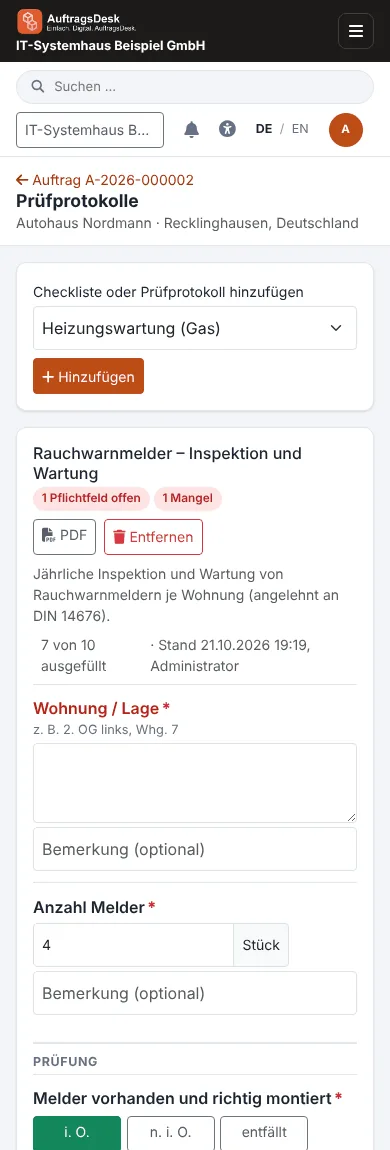
- On the order open Functions → Inspection reports and attach a template.
- Fill it in in the browser or the app, with a remark and photos per field.
- As long as mandatory fields are open, the order cannot be completed.
Created by mistake or picked the wrong template? In the app tap Discard report at the bottom of the report. After a confirmation it is deleted with all entries and photos, even offline. This is no longer possible once the order is completed.
Spotting open reports in the app
When an inspection report is attached to the order, the team sees right away in the app that it has to be filled in:
- In the order list and under Today a checklist icon follows the customer name as long as a report is open.
- On the order the Inspection reports card shows each report with its status: Open (with the number of missing required fields) or Filled in. Fill in opens it.
- The job workflow shows the step Fill in inspection reports with "2 of 3 filled in", and a hint at completion as long as required fields are missing.
- The end-of-day summary before clocking out lists "Inspection report not filled in yet".
A report counts as filled in once all required fields are set and it has been edited at least once. A report without required fields therefore stays open until someone has opened and saved it. Entries made offline count in the app straight away.
On completion the report is locked. It appears in the job report after the work carried out; defects ("not OK") are highlighted in red and counted. Every inspection report is also available as a separate PDF.
Attach templates directly to the maintenance contract. Every automatically created order then gets its inspection report straight away.
A completed report is a copy of the template: later changes to the template do not alter old reports.