

Job report with photos and signature
What goes into the report, how customer and technician sign, and which PDFs are available.
The job report documents every visit: what was done, how long it took, which materials were used, photos and signatures. Technicians usually fill it in in the app; the office can also create it in the browser, for instance for work reported by phone.
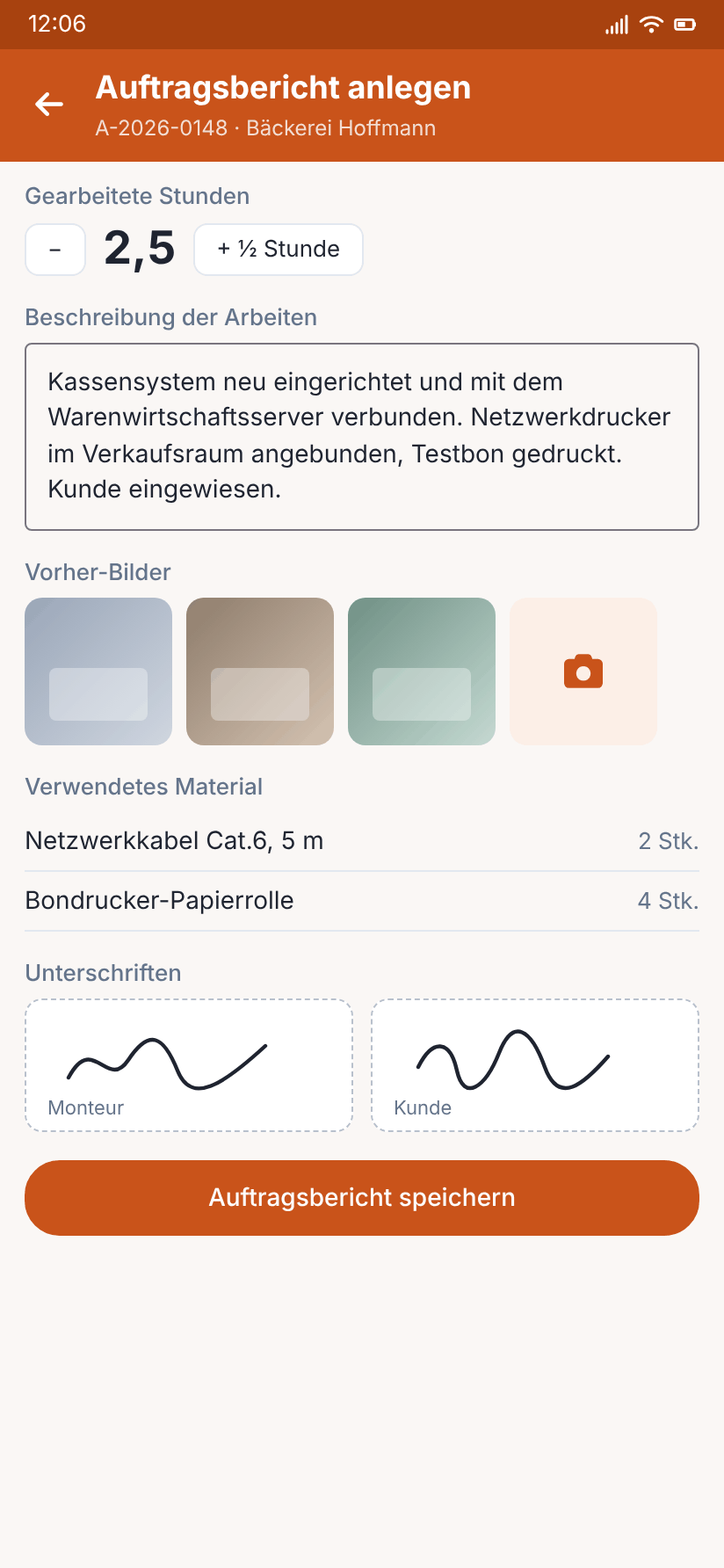
What the report contains
- Hours and work carried out
- Photos in the categories before, during and after
- Materials (booked straight from stock)
- Inspection reports and site measurements, if attached to the order
- Signatures: technician (required) and customer (optional)
Before and after side by side
If a report has before and after photos, they are shown side by side: before on the left, after on the right. The first before photo sits next to the first after photo, the second next to the second and so on, in the order they were taken. If one side has more photos, the space next to them stays empty.
- On the report page under Job reports each report shows the comparison as small images; a click opens the photo in full size.
- In the report PDF (customer and internal report, also in the customer portal) the photo appendix has the section Before and after instead of separate sections. Each photo is labelled before or after with its number, time and who took it. Photos taken during the work follow afterwards.
For a good comparison, the technician should take the after photos in the same order and from the same angle as the before photos. In the apps they choose the category before, during or after for each photo.
Customer signature
The customer signs directly on the device. If they are not there, there are two options:
- Note "customer not present"; only the technician signs.
- Signature by link: the customer receives a link by e-mail or message and signs later on their own phone.
The PDFs
| For whom | |
|---|---|
| Customer report | for the customer, without internal details |
| Internal report | for the office, with all details |
| Photos before / after | photos only, two per page or one per page |
| ZIP | all reports and photos at once |
| Combined report | all reports of an order with several visits in one PDF (customer or internal report) |
The photo appendix shows two photos per row, each with category, time, who uploaded it and the file name. The customer report can be e-mailed to the customer directly and is available in the customer portal.
After completion only people with the permission "Edit job reports" can change the report. Every change is tracked.