Time clock
Clock in, out, breaks and activities, with or without an order, also offline in the app.
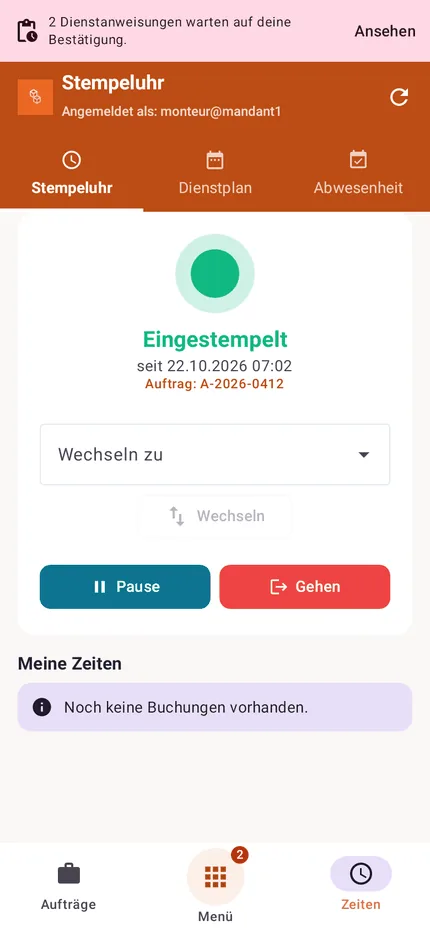
With the time clock, employees record their working time in the browser under My area → Time clock or in the app under Times → Time clock. Browser and app clock into the same time tracking.
Clocking
- Clock in starts the working day, clock out ends it.
- Break pauses, a second tap resumes.
- Optionally linked to an order: the time then counts for the order and feeds into job costing.
- Which orders can be chosen: field staff only see their own (or their team's) orders that are scheduled or in progress. Anyone allowed to see all orders, such as the office, can choose any order except finished and cancelled ones.
- Activities without an order such as workshop, warehouse, travel or home office can be clocked too.
In the app the time clock also works without a connection; bookings are sent as soon as the device is online again.
If the site has a QR code or NFC sticker, the employee clocks in with a single scan. See Clocking in via QR code and NFC.
Your own totals
Below the time clock you see your own hours for today, this week and this month (net, without breaks). If there is a personnel file with weekly hours, the page also shows the month's working time account: target until today, worked, credited absence and balance.
Attendance of all employees
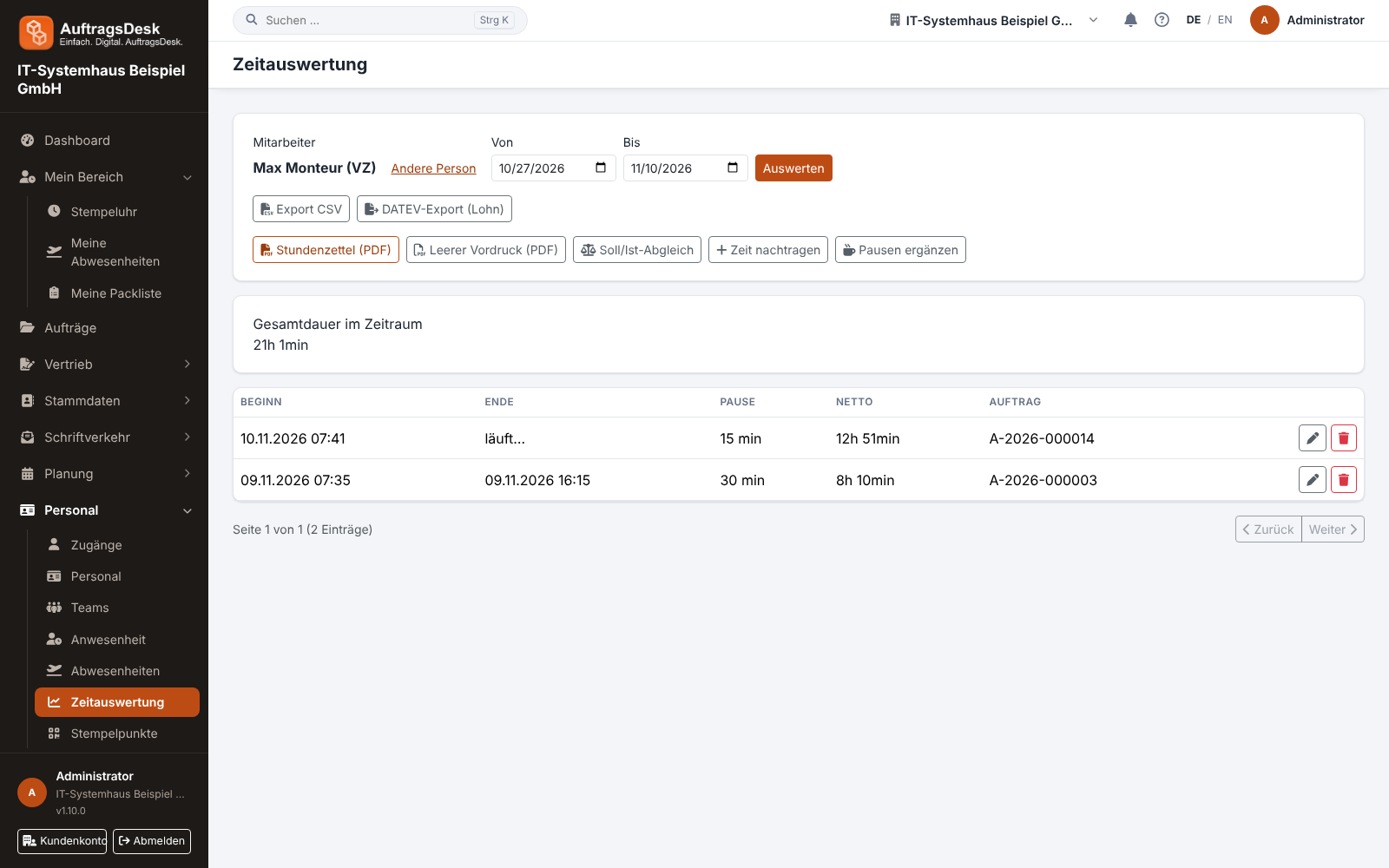
People who may "view time tracking of all employees" see under Personnel → Attendance who is clocked in right now (with job or activity), who is on a break, who is absent today, who has already left and who has not clocked in yet, plus each person's hours for today, the week and the month. Clicking a key figure filters the list, clicking a name opens the person's time report.
Automatic clock-out at 23:59
Anyone still clocked in at 23:59 is clocked out automatically, even if browser and app are closed. A running break counts until 23:59. The entry then shows the note "Clocked out automatically". If work actually ended earlier, the office corrects the end time in the time report; the note then disappears.
For night shifts, tick Works past midnight in the personnel file (Staff data tab). The entry then keeps running past 23:59 and only ends automatically once it has run for 12 hours, with the end set exactly at 12 hours.
Forgot to clock?
Missing or wrong times are corrected by the office in the time report. Depending on the settings, employees can also add entries themselves; every correction is logged with person and time.