

Scheduling
Schedule orders with a click, spot conflicts with leave and create appointments without an order.
Scheduling shows open orders and your employees' appointments side by side so you can plan them with a few clicks.
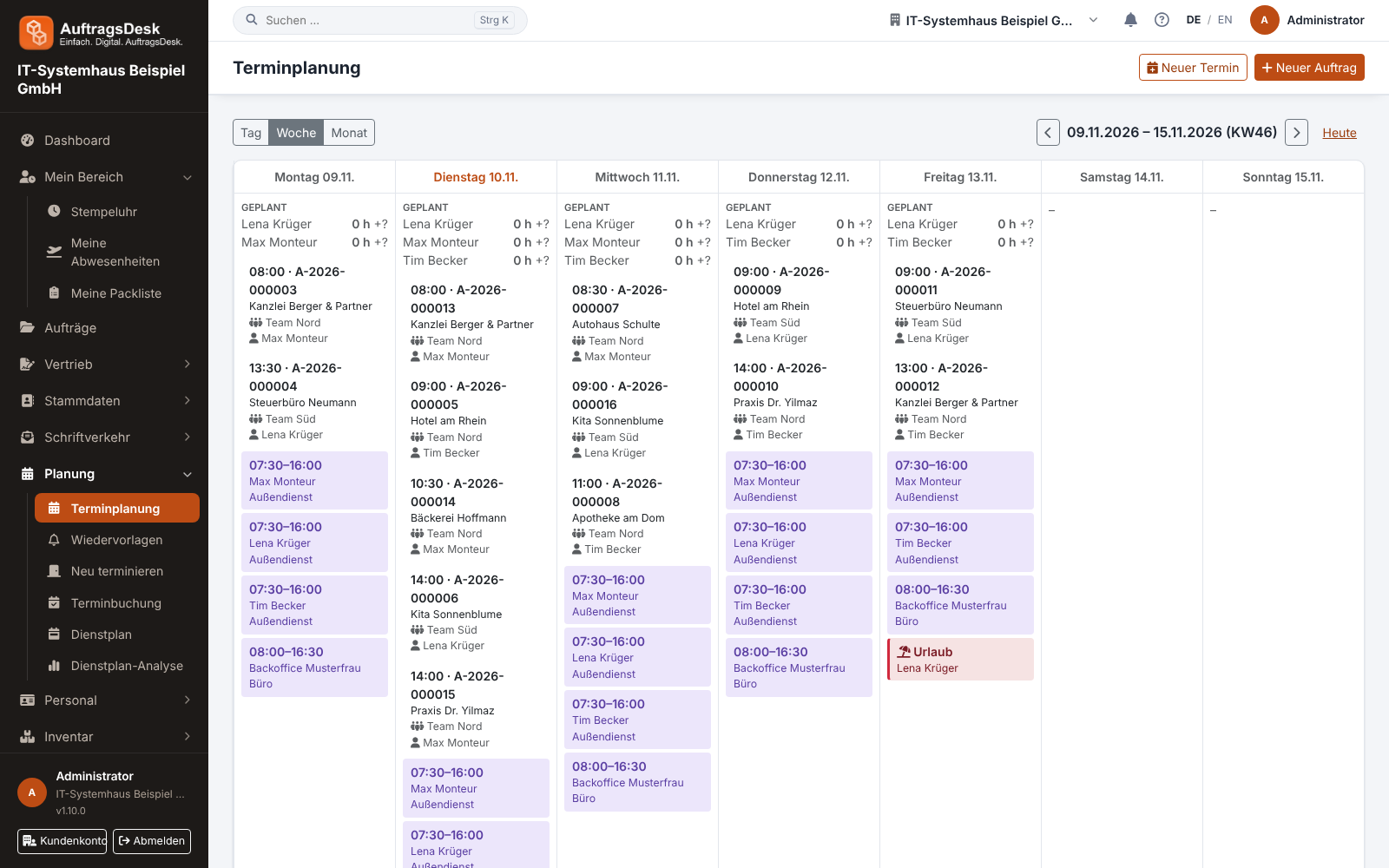
Scheduling an order
- Open Planning → Scheduling. Orders without a date are listed on the left.
- Pick an order and set date, time and assignment: one or more people, plus at most one team.
- Save. The order becomes "Scheduled" and everyone assigned sees it in the app and in the duty roster.
If the employee is absent that day (leave, sickness, company holidays), AuftragsDesk warns you while planning.
Appointments without an order
For meetings, training or workshop days you create appointments with title and description, also for several employees. In the Employee field you can combine any number of people and teams; each choice appears as a chip and can be removed again with its ✕. Anyone selected twice or through several teams gets the appointment only once. For repetitions see recurring appointments. Title and description can be changed here and in the duty roster; both places edit the same appointment.
Moving appointments
A new date applies on the web immediately. With the weekly draft in the duty roster, employees only see it in the apps once the week is published, even in a week that was already published. If appointment reminders are set up, the customer is reminded again for the new date.
Customers can also book free time slots themselves in the customer portal. See online booking.