

Company holidays
Define closing periods once, apply them to all employees and optionally deduct them from leave.
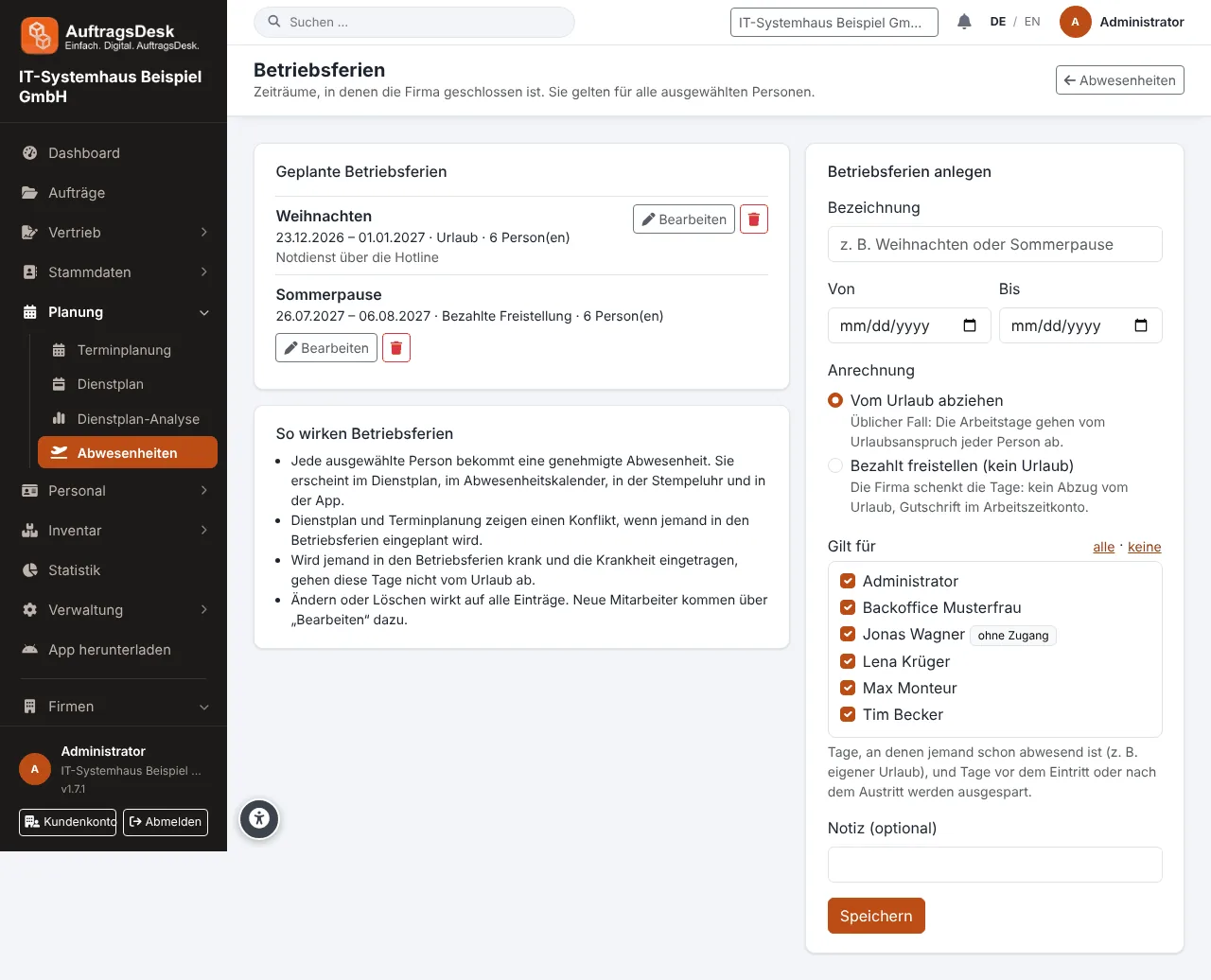
When the company is closed, for example between Christmas and New Year, you define this once under Absences → Company holidays.
How it works
- Open New company holidays, enter a name (e.g. "Christmas") and the period.
- Choose who it applies to. All active employees are preselected.
- Choose how it counts:
- Deduct from leave (usual) or
- Paid leave of absence (no deduction, credited to the working time account).
- Save.
An approved absence is created for every person and takes effect everywhere: duty roster, scheduling, time clock, leave balance and app. Days on which someone is already absent, and days before joining or after leaving, are skipped.
Editing recreates the entries, deleting removes them. All employees see upcoming company holidays on the absences page.