

The customer portal
Your customers' own login with orders, reports, quotes, documents, damage reports and appointment booking.
With the customer portal your customers get their own login at /portal. They see their orders and documents there without calling or writing e-mails.
Setting up access
When you create or edit a customer, choose active or not active under Customer portal. Nothing is preselected, and the customer cannot be saved without a choice.
- Active: the customer automatically receives a one-time link at their e-mail address to set a password (valid for 7 days). A plain-text password is never sent. Without an e-mail address there is no access, and you see a notice.
- Not active: the customer has no access. If they were active before, access is blocked immediately and running sessions end.
In the customer list the Portal column shows "on", "off" or "not chosen". Clicking it opens the Customer portal window with Send access again, View as customer and Switch off. All changes are recorded in the activity log. Without the Enterprise plan there is neither a choice nor a column.
Which address sends the access e-mail
The e-mail with the one-time link uses the same route as all customer e-mails, in this order:
- your connected Microsoft 365 or Gmail mailbox, if "Send emails to customers via this mailbox" is on,
- otherwise your SMTP connection under Integrations,
- otherwise the AuftragsDesk system e-mail with your company address as reply-to address.
The customer's Customer portal window shows which route currently applies.
View as customer
When access is switched on, View as customer opens the portal in a new tab exactly as the customer sees it. You do not need the customer's password.
- The view is read-only. Only the customer can accept quotes, book appointments or report damage.
- Opening a quote does not count as "opened by the customer".
- End view takes you back to the customer list. The view also ends after two hours, when you sign out and when access is switched off.
- Every view is recorded in the activity log.
What the customer sees
| Area | Content |
|---|---|
| Orders | their own orders with status, appointment, further appointments (visits with status) and assignee; confirm upcoming appointments (see below) |
| Reports | signed reports as PDF in the customer version |
| Quotes | view quotes and accept them digitally |
| Invoices | invoices you provide, with payment status and online payment |
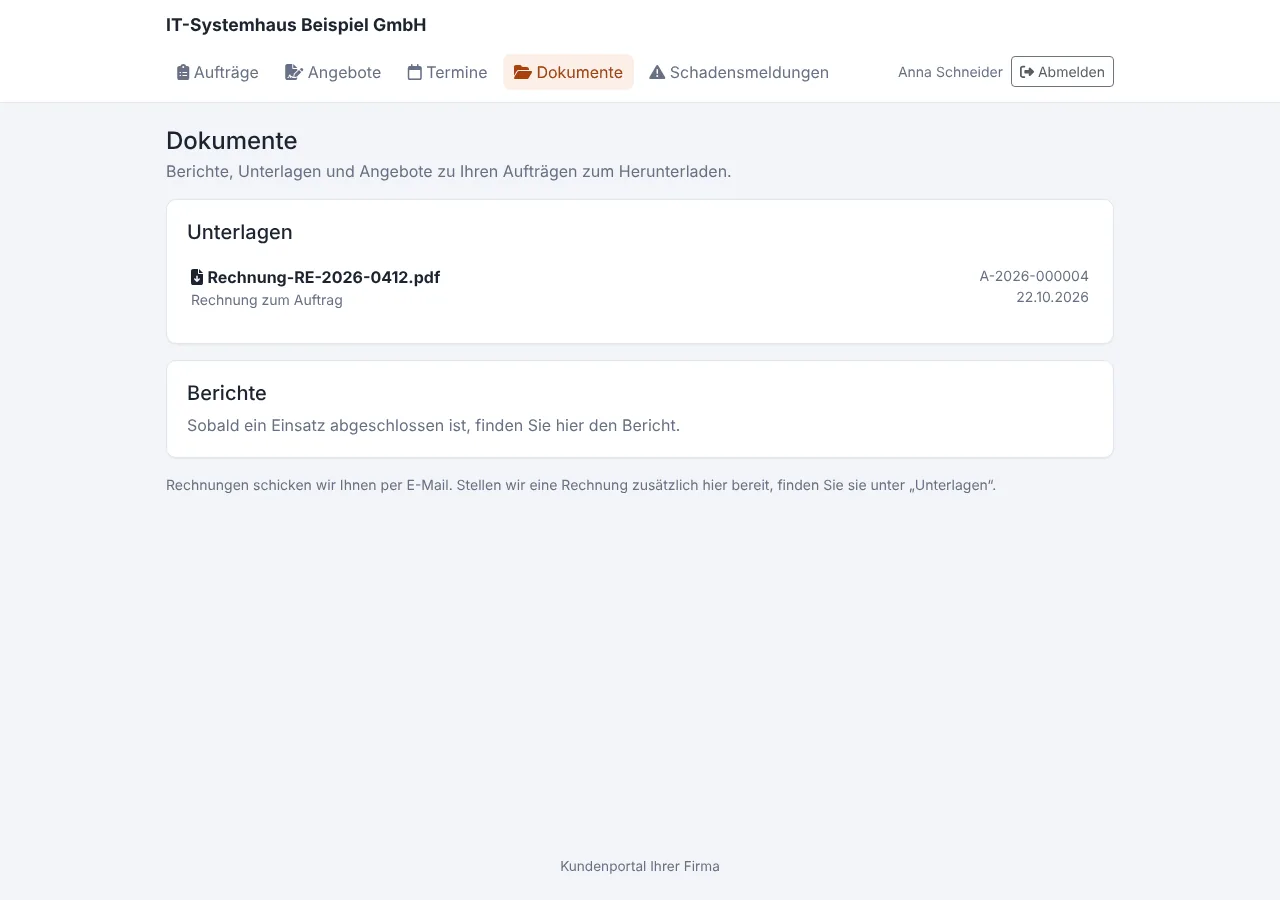
| Documents | all reports, quotes and files you share on the order |
| Damage reports | report damage themselves |
| Appointments | book free time slots |
Internal notes, hours and materials stay hidden.
The portal is available in German and English. Without their own choice it follows the browser language (otherwise German); at the bottom of every page and on the sign-in page the customer chooses Deutsch or English, and the choice is kept in the browser.
While a page or data is loading, a thin orange loading bar runs along the top, just like in the web interface.
If the customer's sign-in expires while a page is open (for example while filling in an appointment request), nothing is lost on submit: the customer signs in again, returns to the same page and finds their entries filled in again to submit once more.
Confirming appointments
On the order page in the portal every upcoming appointment, the order's own appointment and every further visit, has the button Confirm appointment. Afterwards it shows "Confirmed by you on …". The overview points out orders with appointments that are still waiting for a confirmation and marks them in the list.
You see the confirmation on the order page in the section Confirmed by the customer: for each appointment "confirmed" with the time or "not confirmed yet". Open appointments only appear there if the customer has active portal access. With every confirmation everyone with the permission "Create orders" gets a notification (as a push in the app under Orders), and it is recorded in the activity log.
- What is confirmed is the timing of the appointment (start and end). If you move it, the confirmation is open again and the customer confirms the new appointment.
- Past, completed and cancelled appointments as well as appointments of cancelled orders cannot be confirmed.
- In View as customer the button is there but does not submit anything.
Sharing documents
On the order under Documents you make individual files visible to the customer with Share, for example an invoice PDF or a site plan.
The portal is completely separate from the company login. A portal customer cannot reach any company page or the app interface.
Connecting own systems
You can allow customers with their own software (e.g. property managers) to use the customer portal API. They can then use the portal from their own system as well.