

Importing purchase orders from PDF
Upload purchase orders from clients, review them and turn them into orders with one click.
Many clients send purchase orders as PDFs. Under Import & Export → Order import you upload them and AuftragsDesk reads the key details. Reading happens exclusively on our own server, without external services and without AI.
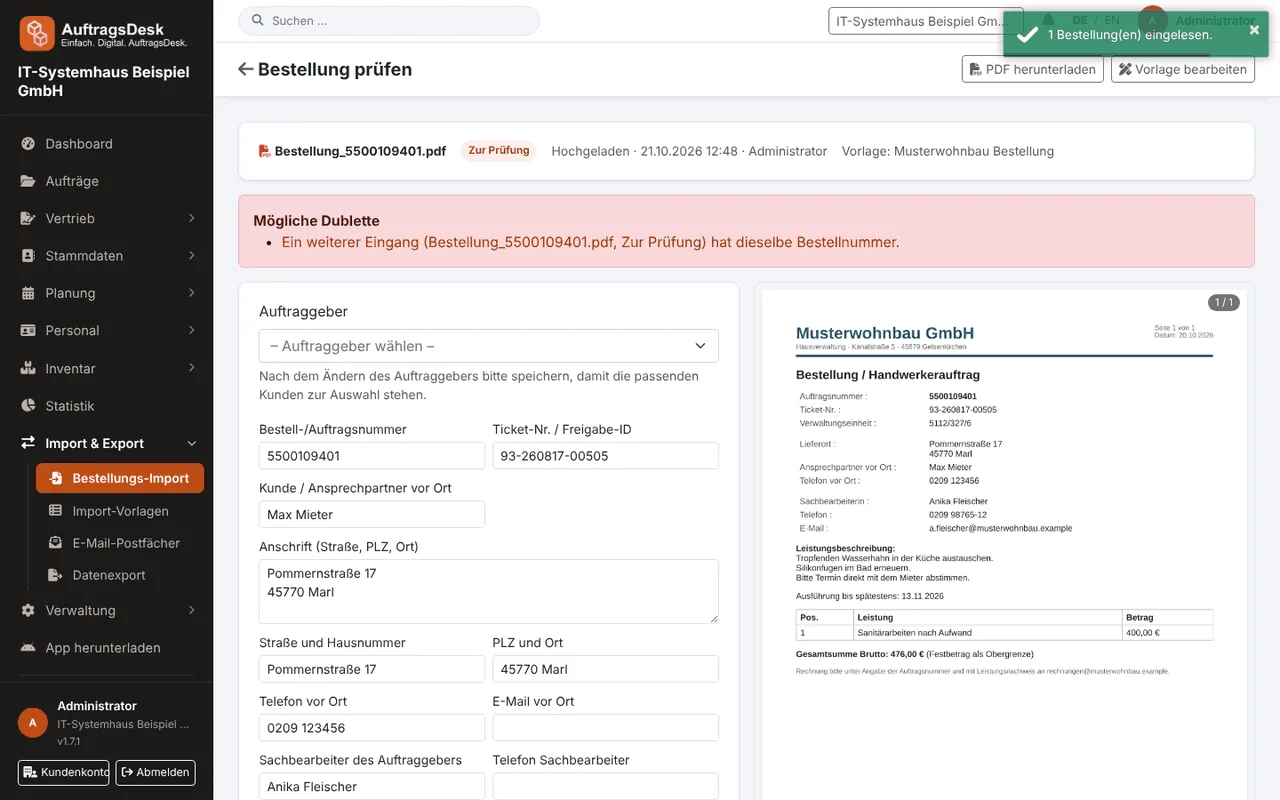
How the import works
- Upload PDFs (several at once if you like) or have them collected automatically from a mailbox.
- A matching import template recognises the client and reads order number, job location, contact person, requested date, description and more.
- Every purchase order lands as a draft for review: PDF pages on the left, the values read on the right.
- Check and correct the values, assign client, contact and customer and click Create order.
The order is created with purchase and ticket number, the client's clerk as contact and the PDF in its documents.
Assign before creating
The review screen is split into three blocks so it is clear what goes where:
- Client and contact: choose an existing client or Create new client from the details. The new client gets company name, address, phone and e-mail from the fields below (this needs the permission to manage clients). If a client with exactly this name already exists, it is used instead of creating a duplicate. Under Contact in the order you choose whether the clerk from the purchase order is used (created if not there yet), another existing contact or none. A matching existing contact is marked with ★.
- Customer and site: an existing customer of the client (★ = suggestion) or a new customer from name, address, phone and e-mail below.
- Order: order and ticket number, dates, amount, description and notes.
If a value is missing, click into the field first and then drag a frame around the spot on the page image. The text appears above the pages; you can still change the field and apply it with Enter. If the client is always in the same place on the purchase order, add the field "Client (company name)" to the import template: an existing client with the same name is then assigned automatically, otherwise "Create new client" is preselected.
After changing the client, click Save draft once so that this client's customers and contacts can be selected. With a new client it also works in one step: Create order creates client, contact, customer and order together.
Safe against duplicates
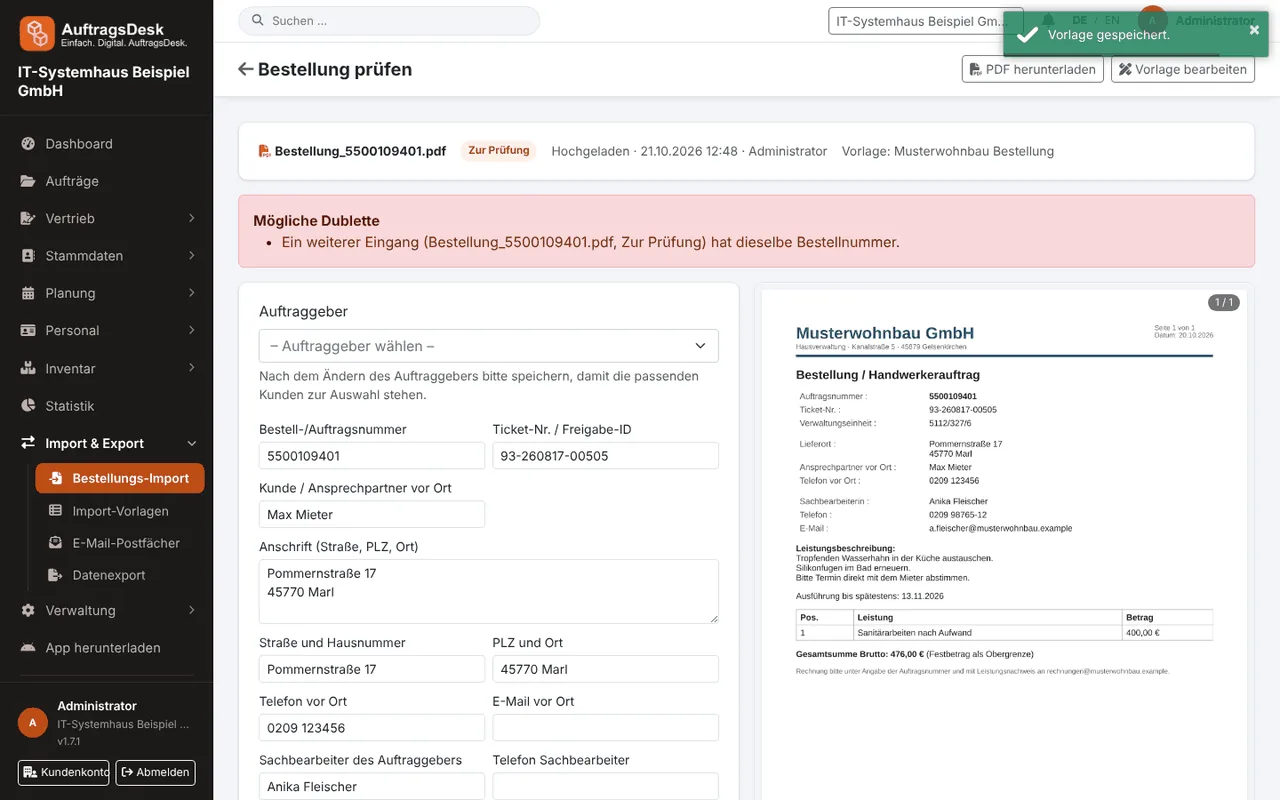
The same file is never read twice. If the order number already exists, AuftragsDesk shows the existing order and asks. Nothing is taken over without review.
Confirmation and queries
Per template an acknowledgement can go to the clerk, immediately or after takeover with your order number. In the review screen you can send a query directly if something is unclear.
Damage reports from the customer portal also arrive here for review.