

Using the app day to day
Orders, menu and times: how staff work on orders, create reports with photos and signature, and clock in.
The app has three areas at the bottom: Orders, Menu in the middle and Times.
Orders
Here are the orders assigned to the employee or their team, with appointment, address and status. If the company plans with the weekly draft in the duty roster, appointments, assignments and visits only appear once the week is published.
At the top they choose My orders or All:
- My orders shows Today (next appointment, timeline, how much is done) or the Rest of the week.
- All shows all of the company's orders by day and time, with a heading per day; the list starts at today, earlier days are above, orders without an appointment at the end. Past days are hidden, open overdue appointments stay; Past appointments (N) shows the past appointments of all orders. A bar above it filters by status, e.g. Scheduled or In progress, each with a count. Several statuses can be selected together; with none selected, all are listed.
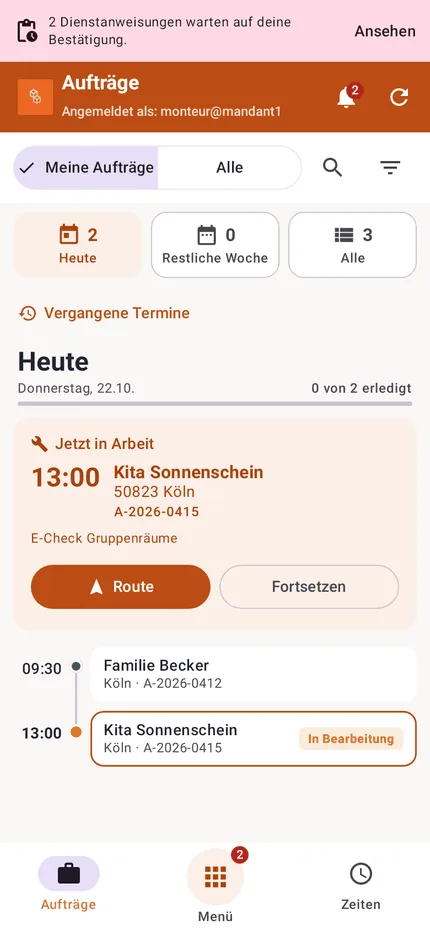
In an order they can:
- start navigation and call contacts
- report On the way so the customer gets the arrival time (with customer notifications)
- change the status, e.g. "In progress" or "Further appointments needed"
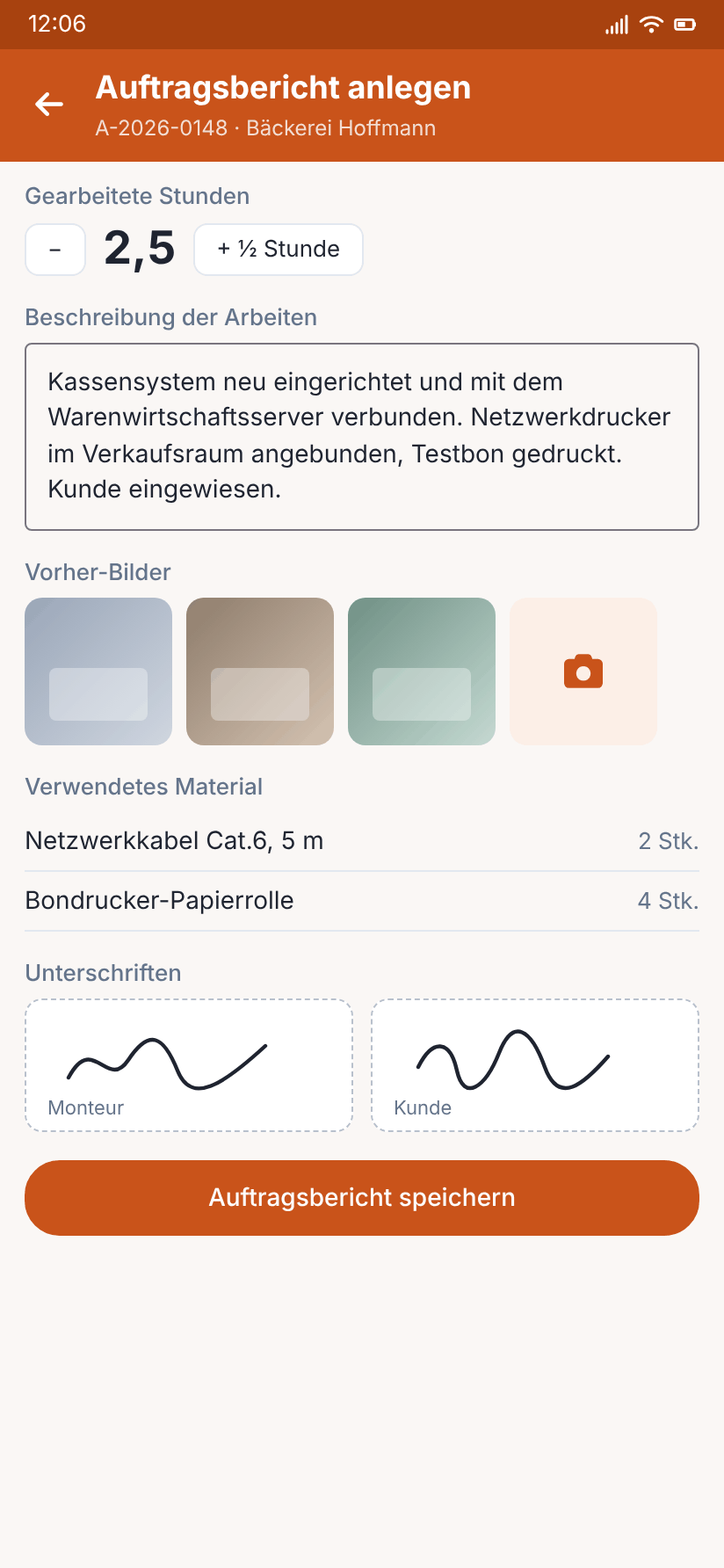
- create a work report: activities, photos before and after, materials, tools used, inspection reports and the customer's signature right on the screen
- change their own work report (hours and description) as long as the order is not completed and the customer has not signed yet: in the order workflow via View / edit and then Edit. After that only the office can change it.
- tap phone numbers in the order description and the note for the visit and choose Call or Copy number
- take a measurement
Times
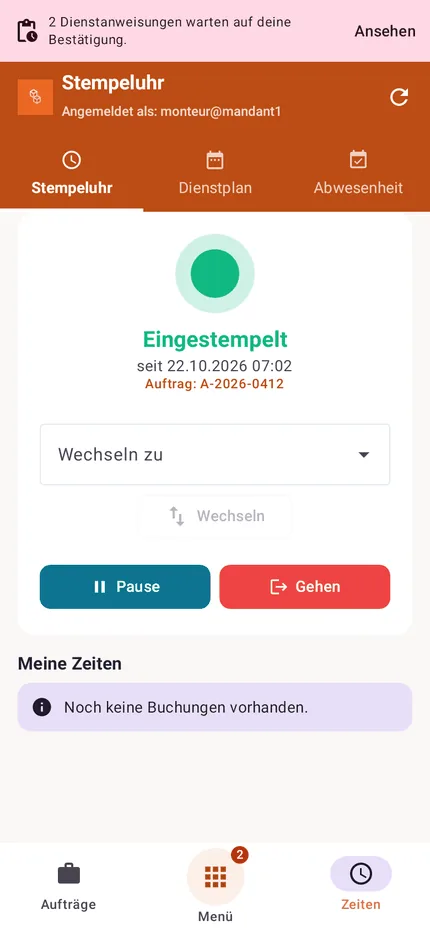
Times has three tabs:
| Tab | Content |
|---|---|
| Time clock | clock in, out, break, travel and work on an order; also via QR code or NFC |
| Duty roster | their own shifts and appointments |
| Absence | request holiday, holiday account balance |
Menu
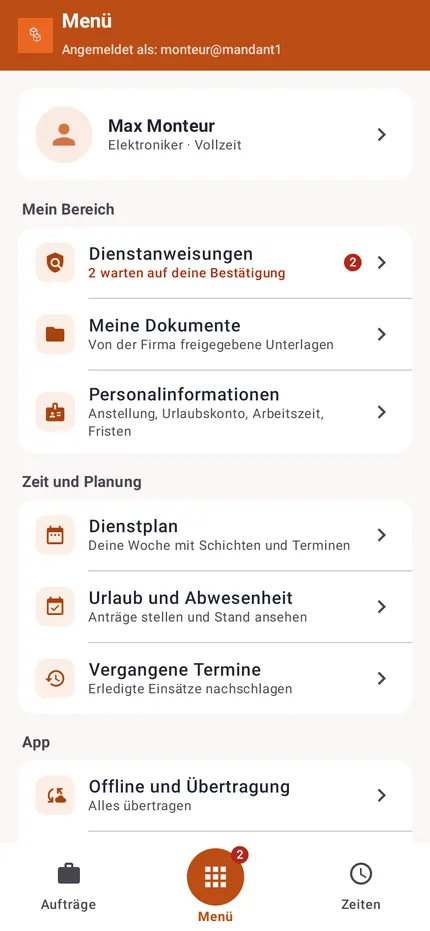
The menu contains My area with work instructions, my documents and personal information, plus offline status, settings and sign-out. A counter on the menu button shows open work instructions. Settings holds appearance, language, your own time zone, navigation app, notifications and app update as well as user name, server URL and app version; the profile holds your own details, password and permissions.
Refreshing
To refresh, pull the page down, as in mail or banking apps: a circle shows that it is reloading, and the current entries stay in place until then. This works in all lists and views, even on an empty page. There is no separate refresh button any more.
When the employee switches back to the app (from another app, after unlocking the phone or after the app restarts), it shows the last loaded state right away and fetches the latest from the server at the same time. The same applies when going back from a subpage to the overview. During an action, such as creating an order report, taking photos, signing, filling in an inspection report or measurement, or submitting a request, the app does not reload so nothing shifts; it catches up once the action is finished. Without a connection the saved state stays in place (see Working offline).
Language
The Android and iOS apps are available in German and English. They follow the device language: if the phone is set to English, the app appears in English, otherwise in German. To use the app in a different language than the device, choose System language, Deutsch or English in the menu under Settings → Language. On Android the choice applies immediately, on the iPhone the next time the app starts (or immediately via Open iOS settings → Language). The chosen language is also saved for the user, so emails and the web interface on a new device come in the same language. Content from the office such as order descriptions, names and notes stays as it was entered.
More guides for the app
- Several visits: If an order has further visits, the app shows each one with its date, its own status and its own note. How the office plans them and how each visit gets its own report is explained in Several visits and multi-day orders.
- New or moved appointments are confirmed by the employee with Seen, see Confirming schedule changes.
- End of the day: Before clocking out, the app shows the end-of-day summary with what is still missing.
- Keys and access codes issued by the office are listed in the menu under My area → My keys, see Key register.
- Dictation, document scanning, break reminders and shortcuts are described in Handy helpers in the app.
Usage statistics
So that we can see which app versions are still in use and how much the apps are used, the AuftragsDesk server counts the app's signed-in requests: per day the number of active users and companies, the platform (Android or iOS) and the app version. There is no tracker and no advertising ID. During the day a user appears in the count only as a hashed value; after the day ends only totals remain, with no reference to people or companies.