

Managing materials and items
Maintain items with stock, minimum stock, prices and supplier, and book materials to orders.
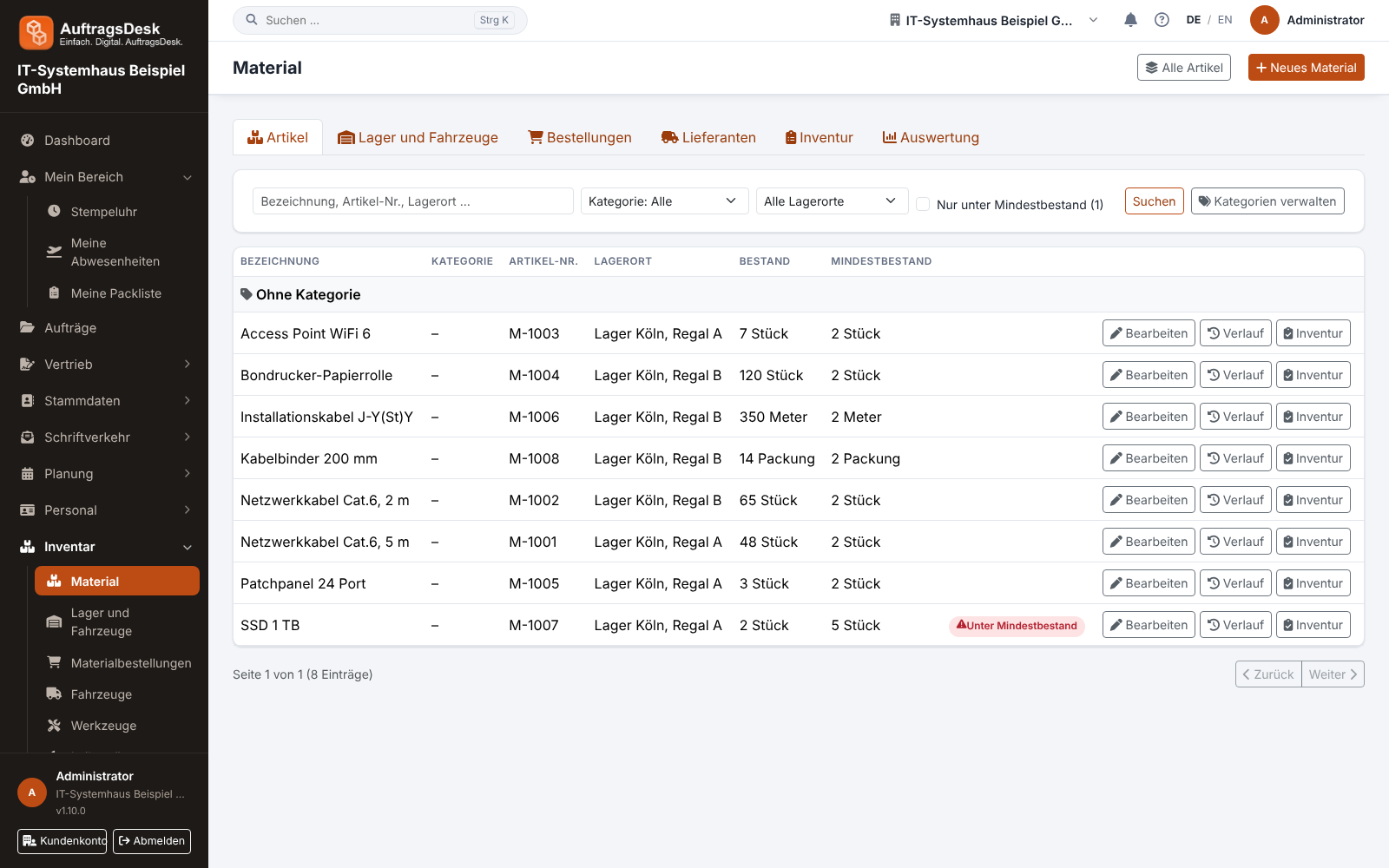
Under Inventory → Material you maintain every item your staff install or consume: cables, screws, spare parts, cleaning supplies.
Creating an item
- Open Inventory → Material and click New material.
- Enter name, item number, unit and category.
- Set the stock, the minimum stock and the storage location. The field suggests locations already in use.
- Enter purchase price and sales price (net).
- Optional: supplier, their item number and the pack size (see Orders and stocktaking).
When stock falls below the minimum, the item is flagged and the managers are notified once.
Booking material to an order
Used material is booked directly on the order: in the office on the order's material page, in the work report or on the go in the app. Stock drops immediately.
- If the person booking has a vehicle store, material is taken from there first and the rest from the main store.
- Purchase and sales prices are stored per booking. Later price changes do not alter old orders. This is the basis for job costing.
- You cancel a wrong booking; the quantity returns to the same store.
All items and history
All items shows materials, tools, machines and devices in one searchable list. History lists every stock change with reason, quantity, resulting stock and user: consumption on an order, cancellation, transfer, goods receipt, stocktaking or correction.
Filter the list with "below minimum stock only" to see at a glance what is missing before you order.